![Hauptlogo_ChiliDigital_neg_weiss.svg]](https://products.chili.ch/hubfs/10_Visuelle%20Elemente/02_Logos/00_ChiliDigital/Hauptlogo_ChiliDigital_neg_weiss.svg)
ChiliDocs is moving to the new HubSpot UI extensions. For the ChiliDocs app card “ChiliDocs — Generate document” to appear on your CRM records, you must enable (opt in to) the card once for the objects you want to use it on. This guide is for new users and for anyone migrating from the previous version.
⚠️ Prerequisite – permissions
Only someone with permission to edit integration apps (for example a Super Admin) can perform this opt-in. If you don’t have these rights, contact an administrator of your HubSpot account.
✅ Step-by-step instructions
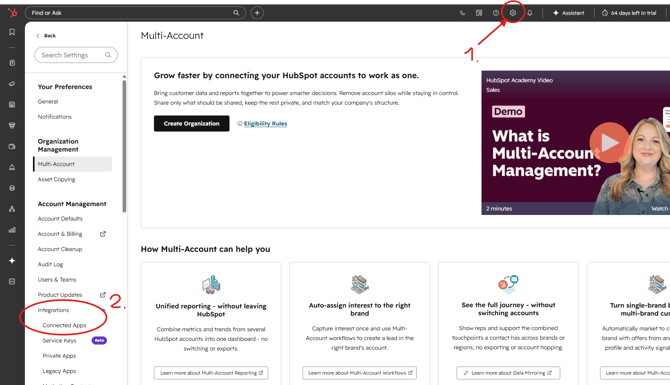
- Open “Settings” (gear icon, top right). In the left sidebar, under “Account Management”, click “Integrations”.
- The “Integrations” menu expands. Click “Connected Apps”.
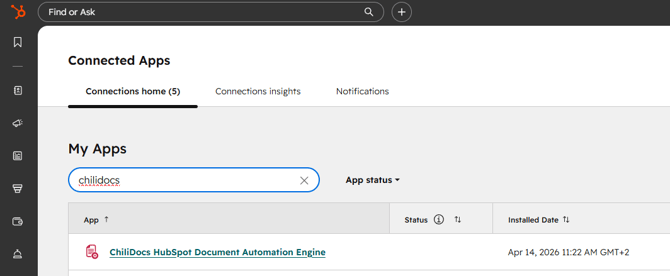
- In the “My Apps” section, search for “chilidocs”.
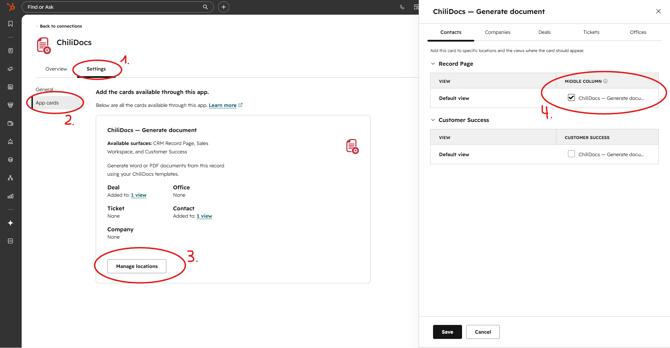
- Click “ChiliDocs” and switch to the “Settings” tab.
- Open the “App cards” section.
- Click “Manage locations”.
- Enable ChiliDocs for the objects you want. The record page is recommended – tick the checkbox in the “Middle column”. Click “Save”.
After saving, the “ChiliDocs — Generate document” card appears on records of the selected objects: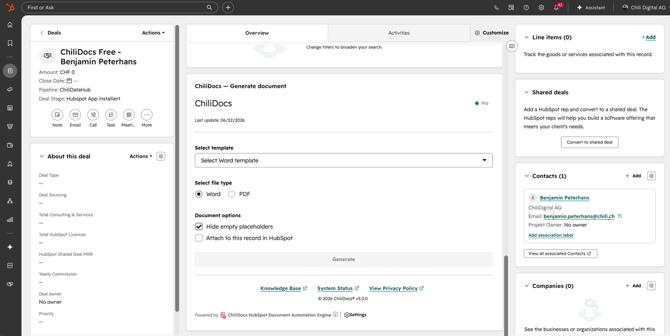
📍 Where does the new card appear?
The card no longer appears in the same place as the previous ChiliDocs card in the CRM. It is shown in the middle column of the open record – the same area where cards like "Activity", "Properties" or "Associations" live. If you don't see the card at first, scroll down in the middle column of the record – that's where "ChiliDocs — Generate document" appears.
👥 Card not showing for individual users?
If you can see the card but individual team members cannot, the reason is usually HubSpot team views. Details and solution: ChiliDocs card does not appear for users in teams.
ℹ️ Important note for the free version (Free)
In the free version the card works only on Contacts. You can opt in for other objects, but the card will not appear /