![Hauptlogo_ChiliDigital_neg_weiss.svg]](https://products.chili.ch/hubfs/10_Visuelle%20Elemente/02_Logos/00_ChiliDigital/Hauptlogo_ChiliDigital_neg_weiss.svg)
When you update (re-authorize) ChiliDocs, HubSpot may show an error instead of the permission screen.
Why this happens
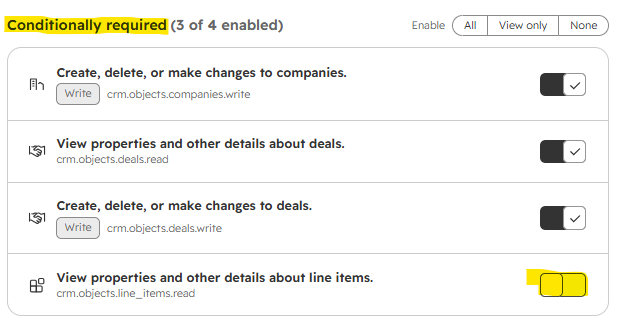
Your HubSpot account uses app governance: a Super Admin controls which permissions each connected app may use. ChiliDocs was originally approved with an older set of permissions. The update requests four additional permissions that ChiliDocs needs to generate documents from deals and line items:
- View deals (
crm.objects.deals.read) - Edit deals (
crm.objects.deals.write) - View line items (
crm.objects.line_items.read) - Edit companies (
crm.objects.companies.write)
Until a Super Admin approves these for ChiliDocs, HubSpot blocks the update. This does not affect your existing ChiliDocs setup — everything already connected keeps working.
How to approve the permissions (Super Admin required)
- In HubSpot, click the settings icon in the top navigation bar.
- In the left sidebar, go to Integrations → Connected Apps and open the Approved apps tab.
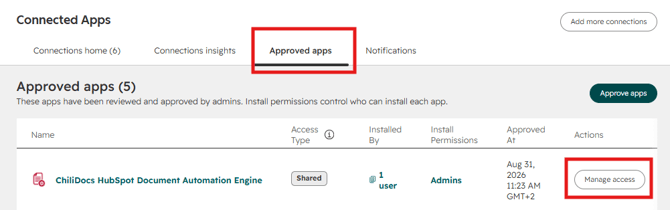
- Click Manage Access and open its Data Permissions.
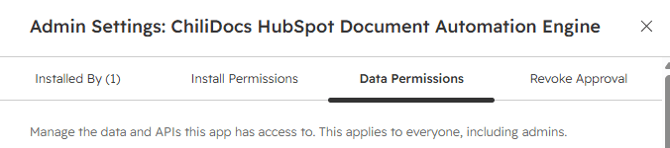
- Approve all the pending permissions listed above. If you see a section named Available after re-authentication, the new permissions are listed there.
- Now run the update again from ChiliDocs: open the ChiliDocs app settings page in HubSpot and click Update. Important: use the ChiliDocs Update button, not HubSpot's own "Re-authenticate" prompt — only the ChiliDocs update requests the complete set of permissions.
- HubSpot now shows the permission screen including deal and line item access. Confirm it — done.
Still not working?
- Make sure the person performing both steps is a Super Admin of your HubSpot account.
- If the error persists, contact us at support@chili.ch and include a screenshot of the error — we'll take it from there.